 itch.io
 Gumroad
Mac Productivity
How to Reduce Context Switching on Your Mac
Keep projects, workspaces, files, and reminders ready so switching tasks does not break your concentration.
 Follow on X
 Join Reddit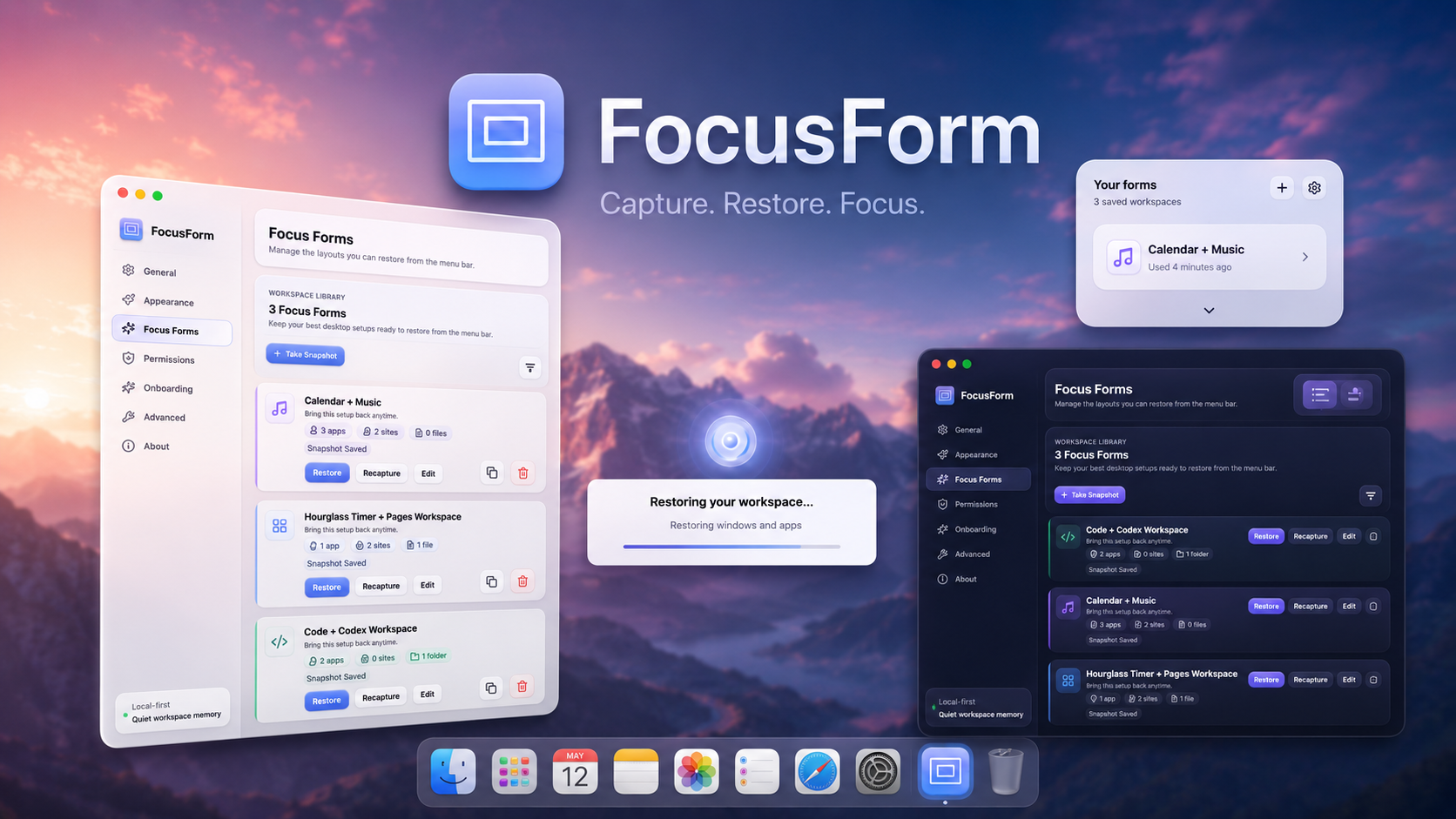
What context switching looks like on a Mac
Context switching is not only jumping from one big project to another. It also happens in the small pauses: searching for a missing file, reopening the same folder, arranging the same windows, finding the right browser tab, or trying to remember the task you meant to do after a call.
Each interruption asks your brain to reload the project. The work may still be open somewhere, but if the materials are scattered, you spend attention rebuilding the scene instead of continuing the thought.
A good Mac setup reduces the number of tiny decisions between stopping and starting. The less you have to hunt, the easier it is to stay in the work.
Why reopening a workspace manually creates friction
Manual rebuilding feels harmless because each step is small. Open the app. Find the file. Search for the folder. Reopen the tabs. Resize the window. Check Notes. Look for the screenshot. Remember what you were doing.
The problem is repetition. If you do the same setup every morning or every time you switch projects, those small steps become part of the task. They also make it easier to drift into unrelated tabs or messages before the real work begins.
For repeatable setups, a saved workspace is often better than a checklist. The guide on saving and restoring a Mac workspace explains the built-in options and where a dedicated workspace tool can help.
Keep active materials visible and nearby
Not everything belongs in a full task manager or deep folder. Some materials need to stay close because you are using them repeatedly: a reference image, a document, a note, a link, a folder, or an app.
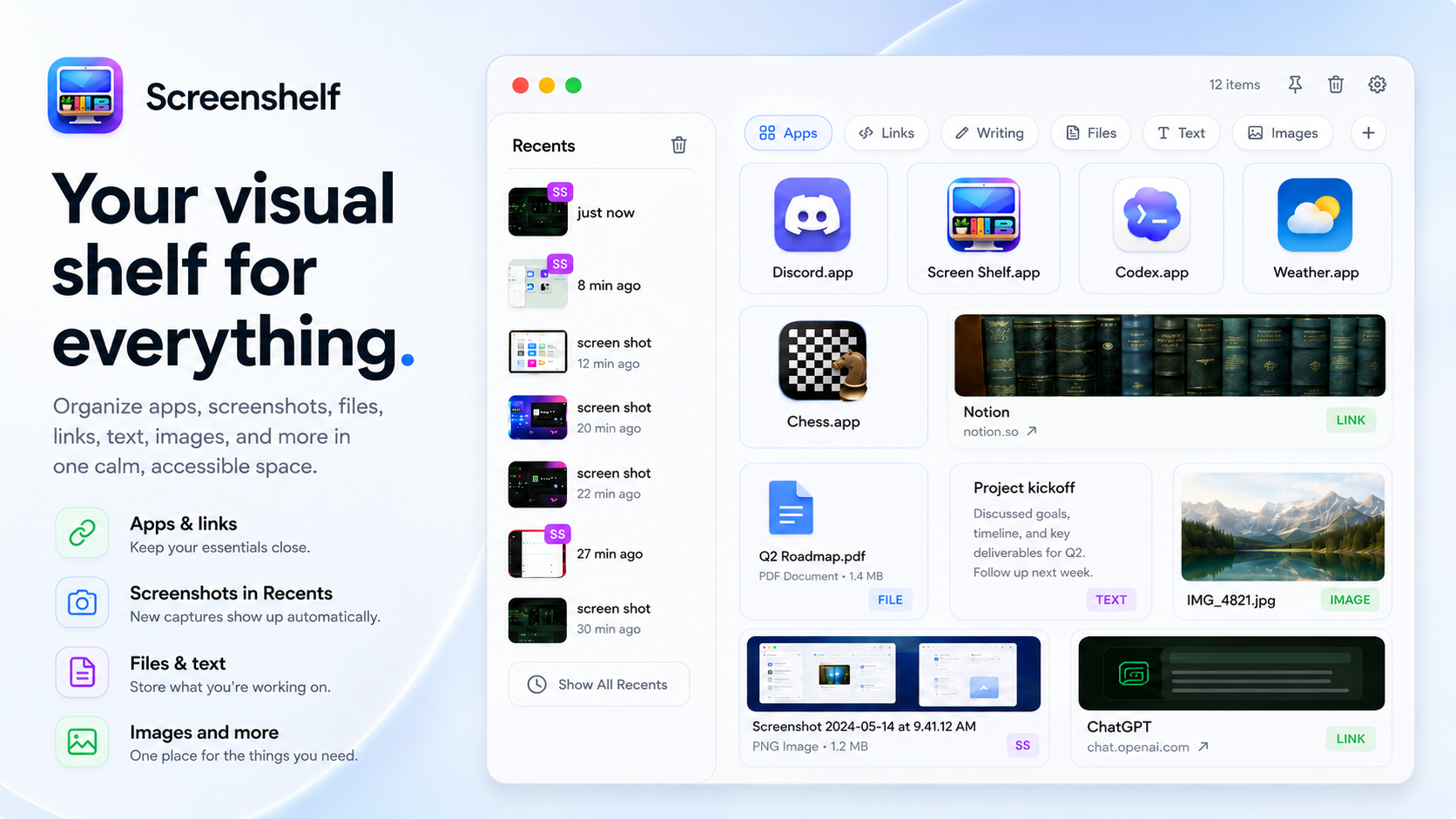
ScreenShelf is designed for that kind of active project material. Its product page describes a visual shelf for files, screenshots, links, text, images, apps, and temporary work items, with pages for different workflows.
Use a small visual area for the handful of things you need during the current session. If the shelf becomes crowded, treat that as a signal to archive, delete, or move finished items back into a project folder.
Use lightweight reminders for small tasks
Context switching also happens when you try to hold a small future task in your head. Call back after the meeting. Move the laundry. Check the export. Send the file. Take a break. These are not always worth a full project-management workflow, but they still need to appear at the right time.
PopNote is a lightweight macOS menu bar app for colorful floating bubble notes. The current page describes timed notes, quick timing options, daily and weekly repeats, and Apple Reminders sync.
Use visible reminders sparingly. The point is to remove a small memory burden, not cover the screen with alerts. For more reminder options, see the guide on creating pop-up reminders on a Mac.
Create separate workspaces for different modes
One workspace rarely fits every kind of work. Coding may need an editor, terminal, documentation, issue tracker, and project folder. Writing may need a draft, research tabs, notes, and a quiet timer. Studying may need PDFs, a notes app, flashcards, and a browser. Entertainment may need a completely different setup.
FocusForm helps by saving and restoring apps, windows, websites, files, and folders as workspace snapshots. That makes it easier to switch between modes without rebuilding the same layout by hand.
Name workspaces by purpose, not by app. Admin, Writing Draft, Client Site, Study Night, or Coding Main App will be easier to recognize later than a vague name like Monday Setup.
A simple routine for ending and restarting a session
At the end of a session, spend one minute resetting the workspace. Save important files. Move permanent materials into the project folder. Remove old screenshots and temporary links. Leave only the items you want to see next time.
If the setup is repeatable, save or update the workspace snapshot. If there are small follow-up tasks, create a visible reminder rather than relying on memory. If a recent file may be needed soon, make sure you can retrieve it quickly.
When you return, open the saved workspace, glance at the active materials, and start from the next action. This routine is simple, but it reduces the amount of context your brain has to reconstruct.
Where QuietWare tools fit
FocusForm is the best fit when the whole workspace needs to come back. ScreenShelf helps when active materials should stay visible while you work. PopNote helps when a small reminder should appear without turning into a task-management project.
These apps are designed for macOS and built around focused jobs. They are not meant to become a giant system you have to maintain. They are meant to remove a few common sources of friction so your attention can stay with the work.
Conclusion
Reducing context switching is less about discipline and more about environment. Keep active materials close, save repeatable workspaces, and use reminders for the small tasks your brain should not have to hold.
When your Mac remembers more of the setup, you can spend more attention on the project itself.
 Related: ScreenShelf
 Related: GeekDock